By Posture Reminder AI
Published by Posture Reminder AI
Webcam Posture App Accuracy: Camera Angle, Lighting, and Calibration Fixes
Updated for June 19, 2026. Webcam posture apps can feel surprisingly good when the camera view is clean and surprisingly wrong when the setup is off. One day the app catches slouching at the right moment. The next day it misses the same posture, alerts too often, or treats a normal lean as a problem. That does not always mean the posture model is useless. Often the camera view changed.
Quick summary
Summarize this blog with AI
Updated for June 19, 2026. Webcam posture apps can feel surprisingly good when the camera view is clean and surprisingly wrong when the setup is off. One day the app catches slouching at the right moment. The next day it misses the same posture, alerts too often, or treats a normal lean as a problem. That does not always mean the posture model is useless. Often the camera view changed.
Computer vision depends on what the camera can actually see. Camera height, side angle, lighting, glare, clothing contrast, chair shape, external monitors, and calibration posture can all change the signal. A small shift in laptop lid angle or webcam placement can make your shoulders, head, or torso look different enough that detection becomes less reliable.
This guide explains how to troubleshoot webcam posture app accuracy before you give up, buy a new device, or assume every alert is meaningful. It also covers privacy checks, because a posture camera tool should be judged by both accuracy and data handling.
Quick Takeaways
- Most webcam posture accuracy problems start with camera placement, lighting, occlusion, or calibration drift.
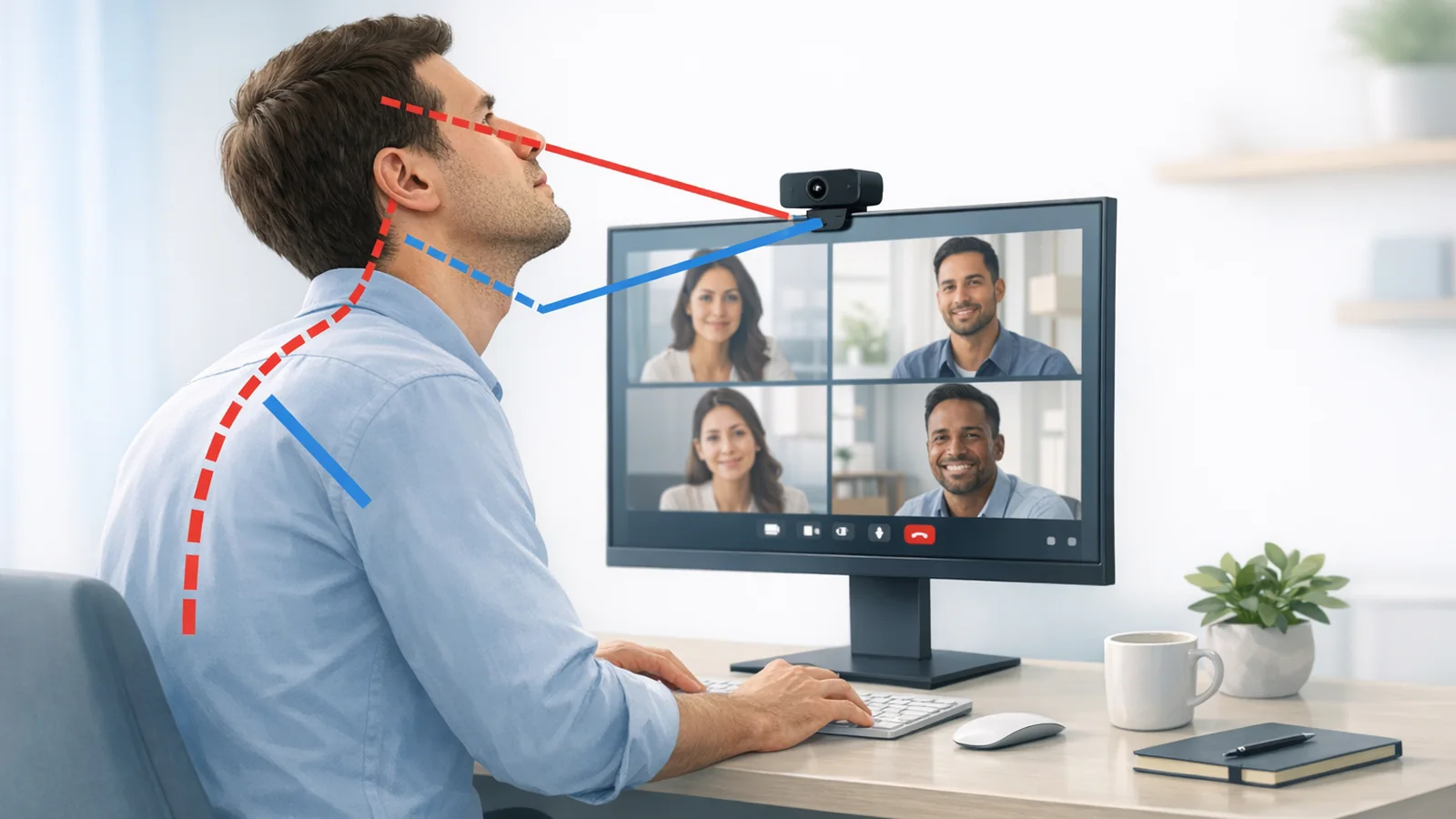
- A side-profile or slight three-quarter view usually gives a posture app more useful information than a low laptop camera pointed up at your face.
- Recalibrate after moving the webcam, changing chairs, switching monitors, changing lighting, or changing your normal sitting distance.
- False alerts are often a setup problem, but persistent pain, numbness, or weakness should not be delegated to an app.
- Check camera permissions and privacy behavior before letting any posture or meeting app use your webcam.
What to Do Today
- Place the camera near shoulder to eye height instead of below the chin.
- Use a stable side or slight three-quarter angle where the head, neck, shoulders, and upper torso are visible.
- Improve front or side lighting so the app is not trying to read posture from a silhouette.
- Keep the chair back, hoodie, hair, microphone, and monitor edge from hiding shoulder and neck landmarks.
- Recalibrate using a realistic upright posture and a realistic slouch, not exaggerated poses.
Why Webcam Posture Detection Can Feel Inconsistent
A webcam posture app is not measuring your spine directly. It is interpreting visible features from a camera image. Depending on the app, it may look at head position, shoulder angle, torso outline, face orientation, or pose landmarks. If the camera cannot see those features clearly, the app has to infer more from less information.
That is why a small setup change can matter. A laptop camera below eye level can exaggerate chin and head position. A chair back can hide the shoulders. A dark shirt against a dark chair can make the torso harder to separate from the background. Backlighting from a window can turn the body into a silhouette. A wide-angle webcam placed too close can distort proportions near the edge of the frame.
Accuracy improves when the camera sees a consistent, well-lit, unobstructed view of the body parts the app uses.
Camera Height and Angle
Camera height is the first variable to fix. A low laptop camera points upward, which is fine for quick calls but poor for reading head, neck, and torso relationship. It can make the chin and face dominate the frame while the shoulders and upper body are partially hidden. For posture detection, place the camera closer to shoulder or eye height when possible.
Angle matters too. A straight-on view may catch head tilt and shoulder symmetry, but it may miss how far the head drifts forward. A pure side view can show forward head posture and slumping more clearly, but it may lose the far shoulder and can be sensitive to rotation. A slight three-quarter view often works well because it preserves depth while keeping enough upper body visible.
Once you choose an angle, keep it stable. Do not recalibrate with the webcam on one side of the monitor and then use the app after moving it to the other side. Do not change laptop lid angle after calibration and expect the same thresholds to hold.
Framing and Distance
The app needs enough of you in the frame. If only your face is visible, the system has little context for shoulder and torso position. If you are too far away, the useful landmarks may be tiny. A practical frame includes the head, neck, both shoulders if possible, and at least the upper chest. For side-view setups, include the head, neck, shoulder line, upper back, and chair relationship.
Keep your normal working distance during calibration. If you calibrate while sitting tall and close to the screen, then work while leaning back, the app may treat the distance change as posture change. If you use a sit-stand desk, consider whether the app needs separate calibration or different camera placement for sitting and standing.
Lighting and Background
Lighting should make your outline easy to see. Avoid strong backlight from a window behind you. If the room is dark, add a soft light in front or to the side. If the light changes dramatically during the day, expect accuracy to change too. Morning window glare and evening room lighting can create different camera images even when your posture is the same.
Background contrast helps. A dark hoodie against a black chair can hide shoulder and torso edges. A patterned chair or busy background can add visual noise. You do not need a studio setup. You just need the app to see where your head, shoulders, and upper body are relative to the camera.
Occlusion From Chairs, Hair, Clothing, and Desk Gear
Occlusion means something blocks the view. High-back chairs, headrests, large headphones, hoodies, long hair, microphones, monitor edges, and raised arms can all hide the landmarks a posture app uses. If the app is missing slouches or firing randomly, look at the actual camera preview and ask what it can see.
If the chair back hides the shoulders in a side view, move the camera slightly forward or higher. If a microphone arm blocks the neck, route it lower or farther away. If hair or clothing hides the shoulder line, use a clearer calibration session and test again. The goal is not to change how you dress forever. It is to understand when the visual signal is weak.
Calibration Without Exaggerated Poses
Many people calibrate posture apps with poses they never use. They sit impossibly tall for the good posture example and collapse dramatically for the bad posture example. That makes the app learn a gap that does not match real work. Later, normal tired posture sits somewhere between the two examples, and alerts feel late, early, or irrelevant.
Calibrate with realistic examples. Your upright reference should be a comfortable working posture you can return to without bracing. Your slouch reference should be the actual drift you want to catch: head forward, shoulders rounded, ribcage collapsed, leaning toward the screen, or whatever your pattern is. If the app lets you adjust sensitivity, start conservative and increase only after the view is stable.
When to Recalibrate
Recalibrate whenever the visual setup changes materially. That includes moving from laptop camera to external webcam, changing monitor height, changing chair height, switching from sitting to standing, changing camera side, changing lighting, or moving to a different room. Recalibrate after a haircut or clothing change only if the app is visibly struggling, not as a ritual.
Also recalibrate after your own posture target changes. If you are recovering from pain, using a different chair, or following physical therapy guidance, your comfortable upright position may not match the old reference. A posture app should follow the posture you are trying to practice now, not a stale snapshot from months ago.
False Alerts and Missed Alerts
False alerts usually mean the app thinks a normal movement matches your slouch pattern. Common causes include leaning to read small text, looking down at a phone, rotating to a second monitor, changing chair recline, or moving outside the calibrated camera zone. Fix the behavior if it is actually a problem. Fix the setup if the alert is just a camera interpretation issue.
Missed alerts often happen when the app cannot see the pattern clearly or the bad-posture example was too exaggerated. If your real slouch is subtle, calibrate the bad example closer to what actually happens. If the view hides the upper back or shoulder line, improve camera angle before changing sensitivity.
Privacy Checks Before You Trust a Camera Tool
Accuracy is only half the decision. Before using any webcam posture tool, check camera permissions, whether processing happens locally or in the cloud, whether images are stored, whether analytics are optional, and whether the app works offline. On a Mac, review camera access in System Settings and remove permissions for apps you no longer use. If an app cannot explain what happens to camera data, treat that as a product risk, not a minor detail.
A good posture camera workflow should make the camera state clear, avoid unnecessary recording, and give you control over permission. If privacy matters to your workplace or household, solve that before leaving a camera tool running all day.
Frequently Asked Questions
Why does my posture app work on one desk but not another?
The camera view probably changed. Desk height, monitor position, lighting, chair shape, and camera angle can all change what the app sees. Recreate the best camera view and recalibrate in the new setup.
Is a side camera better than a front camera?
For forward head posture and slumping, a side or slight three-quarter view often provides more useful depth. A front view can still help with shoulder symmetry and head tilt, but it may miss forward drift.
Should I increase sensitivity if alerts are not catching me?
Only after fixing camera placement, framing, lighting, and calibration. Raising sensitivity while the view is poor can turn missed alerts into noisy false alerts.
Medical Disclaimer
This article is for educational purposes only and is not medical advice. It is not intended to diagnose, treat, cure, or prevent any condition, and it does not replace care from a physician, physical therapist, occupational therapist, or other qualified clinician. If you have severe pain, numbness, weakness, radiating symptoms, dizziness, worsening symptoms, or questions about your specific situation, seek professional medical evaluation.