By Posture Reminder AI
Published by Posture Reminder AI
Zoom Neck Pain: Why Video Calls Hurt Even When Your Desk Setup Looks Correct
If Zoom neck pain or Teams neck pain hits harder than your normal desk work, the meeting setup is probably the problem. A lot of people have a workstation that feels mostly fine for typing, then suddenly their upper traps light up on call-heavy days and they assume the chair has stopped working.
Quick summary
Summarize this blog with AI
If Zoom neck pain or Teams neck pain hits harder than your normal desk work, the meeting setup is probably the problem. A lot of people have a workstation that feels mostly fine for typing, then suddenly their upper traps light up on call-heavy days and they assume the chair has stopped working.
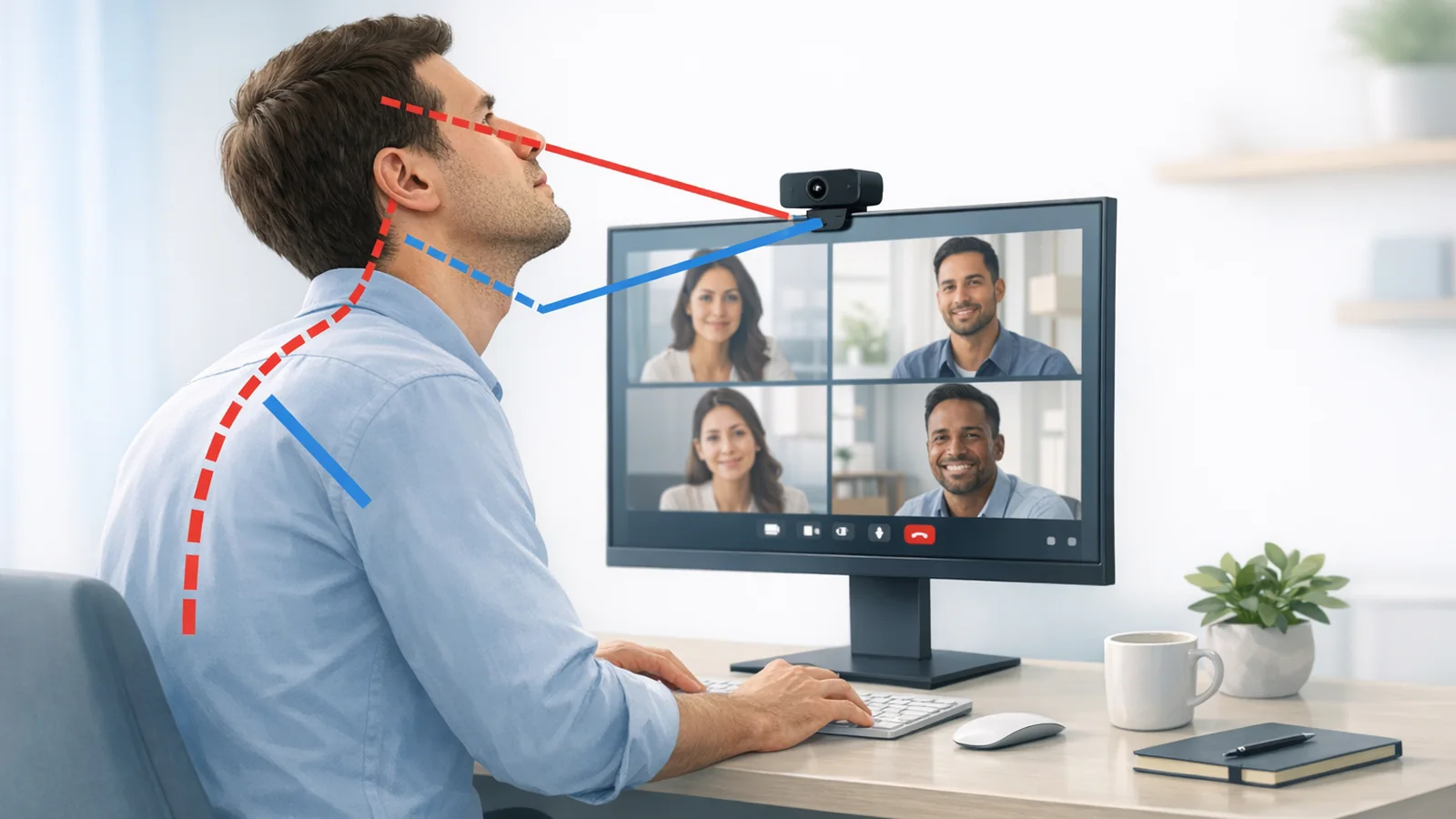
Usually the desk is not the whole story. Video calls change the task. You stare more continuously, move less, chase eye contact, glance at your own thumbnail, and sometimes drop your gaze to a laptop webcam or side screen that would never be your main work monitor otherwise.
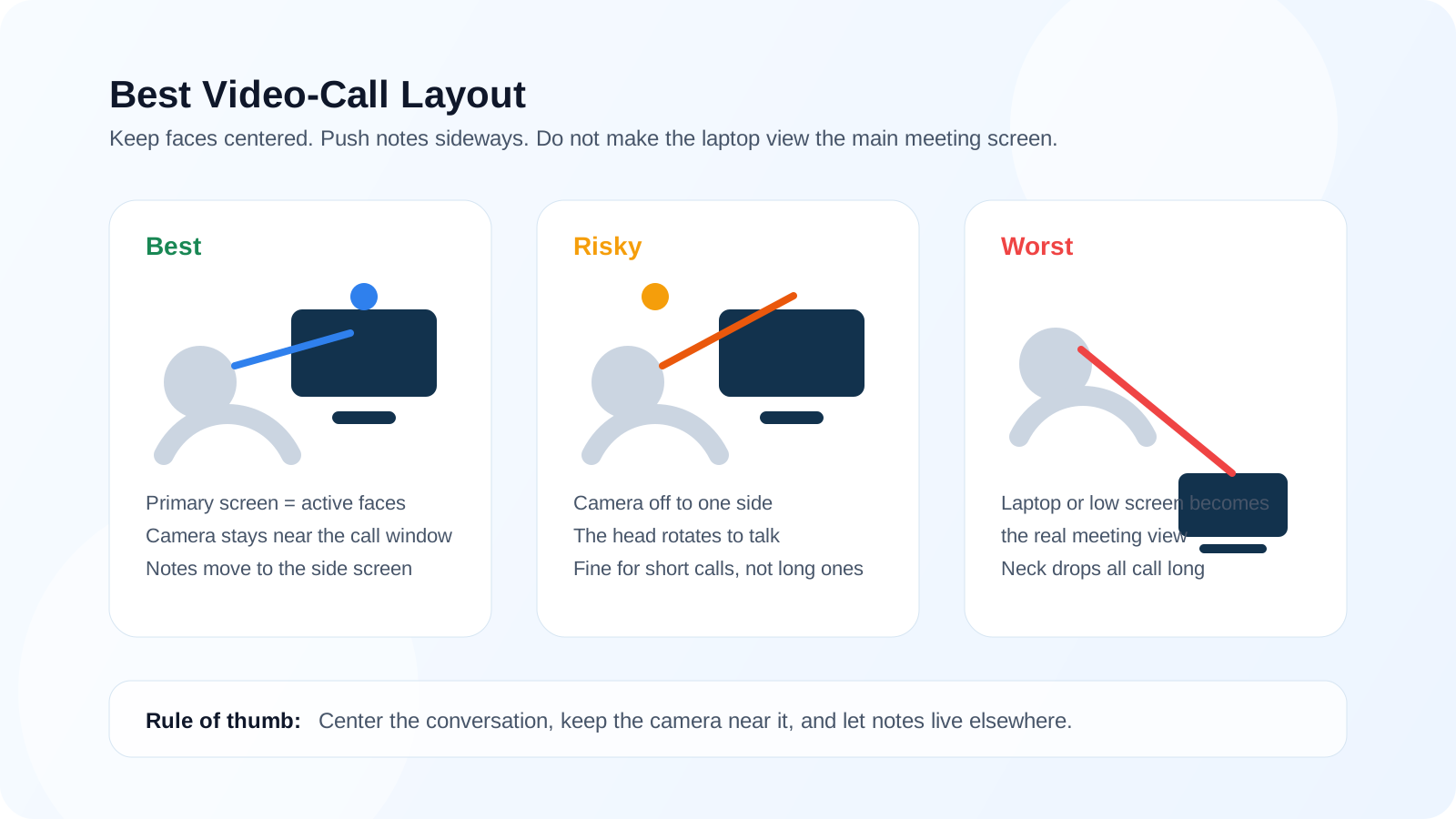
The fix is not to sit more rigidly. The fix is to treat video calls as their own ergonomic problem: center the active window, get the camera close to that window, stop monitoring yourself all meeting long, and reduce how often your neck has to perform for the camera.
At A Glance
Most people do not need a new chair for meeting-day pain. They need a different call layout.
- Keep the active faces or shared content on the screen directly in front of you.
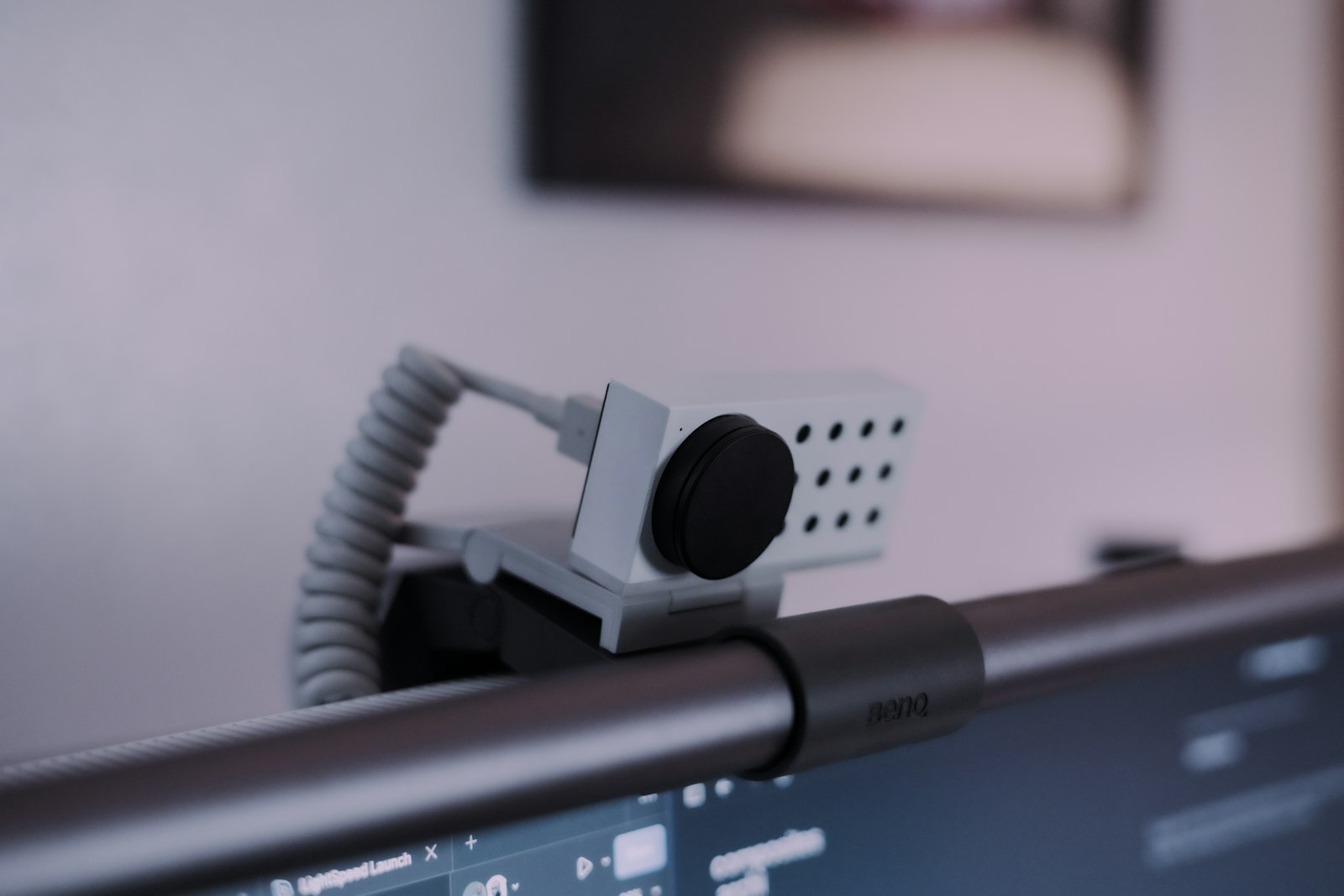
- Keep the camera near that screen, not off to one side or down on the laptop.
- Hide self-view unless you truly need it.
- Use a 20- to 30-second reset between calls before tension accumulates.
Key Highlights
- Meeting days often create more neck pain than writing days because they increase visual fixation and reduce spontaneous movement.
- A low laptop webcam, off-center camera, or side-monitor call window can undo an otherwise decent workstation.
- If the pain shows up mainly during calls, you need call-specific changes, not just generic posture advice.
- The fastest wins are better camera placement, a larger centered call window, less self-view, and short resets between meetings.
Quick Diagnosis
A simple pattern check catches most cases. If your neck is worse on days with many Zoom or Teams calls than on days with the same amount of typing, the meeting format is changing your mechanics. If pain drops when the camera is off, when you move the call from a side screen to the center screen, or when you hide self-view, that is more evidence that the call layout is the issue.
Meeting-Day Triage Table
| What you notice | Most likely issue | Best first fix |
|---|---|---|
| Pain mainly on meeting days | The call layout is worse than the writing layout. | Center the active call window and camera before changing anything else. |
| Pain when the camera is on | Self-monitoring, chin lift, or extra stillness is increasing tension. | Hide self-view and lower the social-performance load. |
| Pain only when using a side screen | The head keeps rotating to chase the conversation. | Move active faces back to the primary centered display. |
| Pain during screen shares | Shared content is too small, so you lean in and stare longer. | Enlarge the shared content or move it to the primary display. |
Why Video Calls Hurt More Than Ordinary Desk Work
Regular desk work allows a surprising amount of micro-movement. During calls, people often freeze. They hold a facial expression, keep the head in frame, and stay visually locked on a small area of the screen far longer than they would during normal reading or typing.
Calls also add social load. Many people subtly lift the chin to look more alert, lean forward to read reactions, or keep checking their own image. That combination turns a manageable desk session into a long bout of neck bracing.
The Four Call-Specific Mistakes That Matter Most
- The call starts on the laptop because that is where the webcam lives, even though the main monitor is positioned better.
- The camera sits far to one side, so every sentence turns into a low-grade neck rotation.
- Faces are too small, so you crane forward to read expressions, names, or shared content.
- Self-view stays visible the whole time, which keeps attention on your own posture and framing instead of the conversation.
Best Screen Roles During Calls
| Screen position | Put this there | Avoid this there |
|---|---|---|
| Primary centered screen | Speaker view, active faces, or the shared content you must follow continuously. | Chat, passive notes, or random secondary windows. |
| Side screen | Agenda, notes, task list, or occasional reference material. | The conversation itself. |
| Laptop screen below a monitor | Only backup content if you truly must keep it open. | Your main meeting view or the thing you stare at for an hour. |
The 30-Second Reset Between Calls
- Lean back fully into the chair and let the shoulders drop.
- Take five slow breaths without lifting the upper chest.
- Do one gentle chin nod instead of a hard chin tuck.
- Stand or walk for 20 to 30 seconds before the next meeting opens.
- Hide self-view unless you have a real reason to keep checking it.
What Current Ergonomic Guidance Agrees On
OSHA says the monitor should be directly in front of you and warns that a display that is too high or too low creates awkward head and shoulder posture. It also notes that the center of the screen is normally most comfortable when it sits below horizontal eye level. CCOHS makes the same broad point: poor viewing angle drives neck and shoulder discomfort, and looking upward is more tiring than looking slightly downward.
If you want the source material, start with OSHA monitor guidance and CCOHS on monitor positioning.
Related Reading
- External Monitor Eye Strain on Mac: Fix Headaches and Blurry Text
- Progressive Lenses and Computer Neck Pain
- Dual Monitor Ergonomics: How to Stop Neck Pain Without Giving Up Screen Space
- Mac Camera Permission Audit
Medical Disclaimer
This article is for educational purposes only and is not medical advice. It is not intended to diagnose, treat, cure, or prevent any condition, and it does not replace care from a physician, physical therapist, or other qualified clinician. If you have severe pain, numbness, weakness, dizziness, worsening symptoms, or questions about your specific situation, seek professional medical evaluation.