By Posture Reminder AI
Published by Posture Reminder AI
Vertical Mouse Wrist and Forearm Pain: Causes and Setup Fixes
A vertical mouse is supposed to make computer work easier on the wrist. Yet a common experience is that the original ache improves while a new pain appears on the outside of the wrist, the top of the hand, the forearm, the thumb, or even the elbow and shoulder. That does not necessarily mean vertical mice are useless, and it does not mean you should push through pain until your body “adapts.” It usually means the new device changed where the work is going.
Quick summary
Summarize this blog with AI
A vertical mouse is supposed to make computer work easier on the wrist. Yet a common experience is that the original ache improves while a new pain appears on the outside of the wrist, the top of the hand, the forearm, the thumb, or even the elbow and shoulder. That does not necessarily mean vertical mice are useless, and it does not mean you should push through pain until your body “adapts.” It usually means the new device changed where the work is going.
A vertical shape reduces how far the forearm has to rotate palm-down, but shape is only one part of mouse ergonomics. Hand size, mouse weight, grip pressure, desk height, reach, forearm support, pointer speed, and how you move the device can all turn a promising mouse into a new source of strain. The goal is not to prove that a particular design is ergonomic. The goal is to find an input setup you can use without escalating symptoms.
Key Highlights
- A vertical mouse changes wrist and forearm position; it does not automatically reduce total workload.
- New pain often comes from poor device fit, gripping, resting pressure on the little-finger side of the hand, excessive mouse weight, or moving from the wrist instead of the whole arm.
- Fix desk height, mouse reach, arm support, and pointer settings before deciding whether the shape works for you.
- Use a gradual trial and compare symptoms during work, after work, and the next morning. Persistent or worsening pain is not a required adjustment phase.
- Numbness, tingling, weakness, night pain, swelling, or loss of hand function deserves professional evaluation rather than another equipment experiment.
What to Do Today
- Put the mouse immediately beside the keyboard, not beyond a number pad or far up the desk.
- Set chair and desk height so the forearm reaches the mouse without a shrug, wrist bend, or pressure on the desk edge.
- Relax your grip and increase pointer speed enough to reduce travel without making the cursor hard to control.
- Move the mouse from the elbow and shoulder with the wrist quiet instead of repeatedly steering from the wrist.
- Trial the vertical mouse in short blocks and keep another input option available for demanding work.
- Stop the trial if symptoms clearly rise during use and remain elevated afterward.
Why a Vertical Mouse Can Move Pain Somewhere New
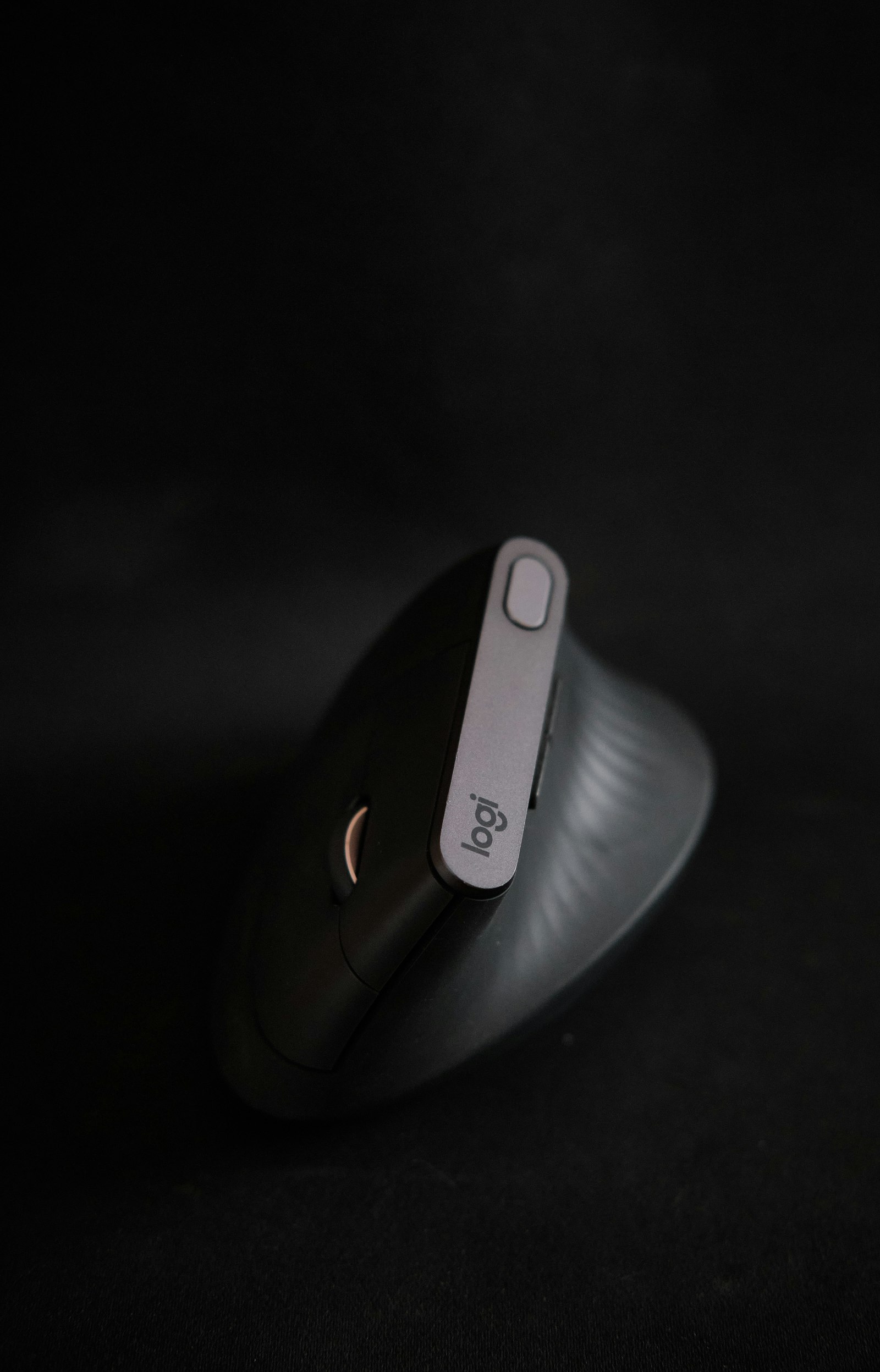
A conventional mouse holds the forearm in more pronation, meaning the palm faces downward. A vertical mouse rotates the hand toward a handshake position. That can feel immediately better for some people because the wrist is no longer held as flat against the desk. The tradeoff is that contact pressure, grip demands, and movement strategy also change.
On a steep mouse, the little-finger side of the hand may become the main contact point with the desk or mouse pad. If the device is tall, heavy, or too large, you may squeeze it to keep control while lifting and repositioning it. If the thumb shelf or buttons do not match your hand, the thumb may stay spread or work harder than before. A design can reduce rotation while increasing another load.
The new shape can also expose a workstation mismatch that the old mouse hid. A mouse that sits higher raises the hand. If the desk was already too high, the shoulder may shrug or the wrist may angle sideways to reach the buttons. If the mouse is farther away because the keyboard is wide, the shoulder still has to hold the arm in a reach all day. Changing the mouse does not cancel those forces.
Check the Fit Before You Change Your Posture
Start with hand fit. Your palm should contact the mouse without stretching to reach the primary buttons. The fingers should rest rather than hover, and the thumb should reach its controls without being pulled far away from the hand. If you have to climb forward on the mouse to click, curl the fingers sharply, or squeeze the sides to lift it, try a smaller or differently shaped model.
Angle is not a contest. A 90-degree design is not automatically better than a moderate angle. A steeper device may reduce pronation more, but it can also concentrate pressure along the side of the hand and require a bigger technique change. Choose the least extreme angle that gives you a comfortable wrist and a stable, relaxed grip.
Weight matters when your work includes frequent repositioning. A heavy mouse can be comfortable for slow browsing and tiring during design, editing, spreadsheets, or gaming. Check whether the mouse glides easily on the actual pad you use. Poor skates or a high-friction surface can make you grip harder without noticing.
Fix the Workstation Around the Mouse
Place the mouse within easy reach, with the upper arm close to the body. A shorter keyboard or separate number pad can create several inches of useful space and reduce sideways reach. Keep the keyboard and mouse at similar heights; a mouse platform that sits noticeably higher can create wrist deviation even when it brings the device closer.
Support should reduce effort without creating a pressure point. Let some forearm weight rest on a broad armrest or desk surface, but avoid planting the wrist or the heel of the hand on a hard edge. If the chair armrest forces the elbow outward, sits above the desk, or prevents you from getting close, lower it or move it out of the way.
Desk height should let the shoulders stay relaxed and the wrists remain roughly in line with the forearms. If the fixed desk is too high, raise the chair and add a stable footrest. If that still leaves the mouse too high, a keyboard tray or lower input surface is a more direct fix than trying to hold the shoulder down all day.
For a broader setup check, use the mouse wrist pain troubleshooting guide before buying another device.
Change How You Move the Mouse
Hold the mouse loosely. The device should not feel as if it will escape unless you clamp it. Keep the wrist close to straight and use the elbow and shoulder to guide larger movements. Small finger adjustments are fine, but repeated side-to-side steering from the wrist can preserve the same irritating pattern in a new hand position.
Increase pointer speed in small steps so less physical travel is needed. The correct setting is the fastest speed you can control without tensing or overshooting. Designers and editors may need separate settings for precision work and ordinary navigation. Acceleration is a preference, not a medical requirement; use the setting that lets you work with the lightest reliable effort.
Reduce unnecessary clicks and long drags. Keyboard shortcuts, click-lock features, scroll settings, voice input, and task-specific macros can lower total mouse exposure. If your workload is the main driver, device rotation may be more useful than finding one “perfect” mouse. The typing-less guide covers practical ways to distribute input work.
A Seven-Day, Symptom-Guided Trial
Do not switch during your busiest deadline and then force eight hours of use on day one. Start with 15 to 30 minutes of low-stakes work. Return to your familiar device before symptoms build. Repeat once or twice that day if the hand and forearm settle fully.
Over the next several days, lengthen the blocks only when symptoms remain mild and return to baseline quickly. Keep a simple note with three ratings: discomfort during use, one hour after use, and the next morning. That catches delayed reactions that are easy to miss when a new device feels novel.
A little unfamiliarity is expected. Pain that rises each session, lasts into the next day, changes sleep, or appears in a new nerve-like pattern is a reason to shorten or stop the trial. “Different muscles” is not a good reason to normalize worsening pain. You can test a device without turning the test into an endurance challenge.
Where the Pain Shows Up and What to Check
- Little-finger side of the wrist or hand: check side pressure, mouse angle, desk-edge contact, and whether the wrist bends toward the little finger.
- Top of the hand or forearm: check mouse weight, lifting frequency, finger hovering, grip tension, and whether the device is too large.
- Thumb base: check thumb spread, thumb-button reach, scrolling load, and whether a thumb-operated trackball is adding repetitive work.
- Elbow or outer forearm: check gripping, repeated lifting, unsupported forearm weight, and a desk that is too high or too low.
- Shoulder or upper trap: check mouse distance, keyboard width, armrest height, and whether the new mouse is making the whole arm reach farther.
- Numbness or tingling: reduce exposure and seek medical guidance if it persists, spreads, wakes you at night, or comes with weakness.
This list is for troubleshooting workload and setup, not diagnosing a tendon or nerve condition. The location of pain alone cannot tell you exactly what tissue is involved.
When Another Input Device Makes More Sense
A trackball reduces how far the device travels, which can help when shoulder movement or desk space is the limiting factor. It can also increase thumb or finger repetition depending on the design. A central pointing device keeps both hands near the middle of the keyboard and may reduce side reach. A pen tablet can suit drawing and editing but needs its own height, reach, and workload plan.
There is no universal winner. Try devices long enough to learn the basic movement, but not so long that you create a flare. A practical setup may include two devices used for different tasks. Alternating a mouse, trackpad, pen, or opposite hand changes exposure more meaningfully than switching between two similar mice while keeping the same reach and grip.
When to Stop Experimenting and Get Help
Stop self-testing and seek medical evaluation if you have persistent numbness, tingling, burning, progressive weakness, swelling, marked loss of motion, dropping objects, severe night symptoms, or pain after trauma. Get help sooner if symptoms are spreading or ordinary daily tasks are becoming difficult. These symptoms have several possible causes; the American Academy of Orthopaedic Surgeons overview of carpal tunnel syndrome lists similar warning signs but does not make the mouse itself a diagnosis.
If discomfort is milder but does not improve after reducing mouse load and fixing the workstation, an occupational therapist, physical therapist, clinician, or qualified ergonomist can assess the whole pattern. The useful question is not simply “Which mouse should I buy?” It is “Which tasks, positions, and loads reproduce the problem, and how can they be changed safely?”
Frequently Asked Questions
How long should it take to adjust to a vertical mouse?
Basic cursor control may feel normal within a few days, while precision work can take longer. There is no required pain period. Use short trials and progress only when symptoms stay stable.
Is a steeper vertical angle always more ergonomic?
No. A steeper angle reduces forearm pronation but may increase side-of-hand pressure, gripping, or control demands. Fit, reach, weight, and movement technique matter as much as the advertised angle.
Should I use a wrist rest with a vertical mouse?
Usually you want support under the forearm or heel of the hand during pauses, not constant pressure directly under the wrist while moving. A rest that bends the wrist or becomes a pivot point can make symptoms worse.
Is a trackball better for wrist pain?
It may reduce arm travel, but it shifts work to the thumb or fingers. Treat it as another option to trial, not a guaranteed cure.
Related Reading
- Mouse Wrist Pain at Work: Fix the Setup Before Switching Mice Again
- Hand Numbness at a Computer: When Ergonomics Helps and When to Get Checked
- Typing Less for Wrist Pain: Dictation, Shortcuts, and Breaks That Actually Help
Sources and Further Reading
- Canadian Centre for Occupational Health and Safety: Computer Mouse Selection and Use
- Canadian Centre for Occupational Health and Safety: Computer Mouse Placement
- Canadian Centre for Occupational Health and Safety: Common Issues From Mouse Use
- OSHA Computer Workstations eTool
- American Academy of Orthopaedic Surgeons: Carpal Tunnel Syndrome
Medical Disclaimer
This article is for educational purposes only and is not medical advice. It is not intended to diagnose, treat, cure, or prevent any condition, and it does not replace care from a physician, occupational therapist, physical therapist, or other qualified clinician. If you have severe pain, numbness, weakness, swelling, worsening symptoms, or questions about your specific situation, seek professional medical evaluation.