By Posture Reminder AI
Published by Posture Reminder AI
Mouse Wrist Pain at Work: Fix the Setup Before Switching Mice Again
Mouse wrist pain often makes people blame the device. They buy a vertical mouse, switch to a trackball, try a lighter gaming mouse, add a wrist rest, and still end up with the same ache by midafternoon. That is frustrating, but it is also a clue: the mouse may be part of the problem, but it is rarely the whole system.
Quick summary
Summarize this blog with AI
Mouse wrist pain often makes people blame the device. They buy a vertical mouse, switch to a trackball, try a lighter gaming mouse, add a wrist rest, and still end up with the same ache by midafternoon. That is frustrating, but it is also a clue: the mouse may be part of the problem, but it is rarely the whole system.
The highest-yield fix is usually not a more exotic mouse. It is removing the forces that keep loading the wrist: reaching too far, using a surface that is too high, bending the wrist back, pressing into a hard desk edge, gripping the mouse too tightly, or doing thousands of tiny clicks without enough variation.
Use this as a troubleshooting guide before you buy another device. It is written for desk workers, designers, developers, editors, analysts, gamers, and anyone whose day depends on repeated pointing, scrolling, dragging, and clicking.
Fast Answer
If your wrist hurts from mouse work, first make the mouse easy to reach, keep it on the same level as the keyboard, keep the wrist mostly straight, remove hard-edge pressure, and reduce repeat clicking. OSHA's pointer/mouse workstation guidance emphasizes keeping the pointer close to the keyboard, maintaining a neutral wrist, using shortcuts, and setting sensitivity so the pointer can be controlled with a light touch. Mayo Clinic's office ergonomics guide also recommends keeping frequently used objects close and using a light touch on the pointer.
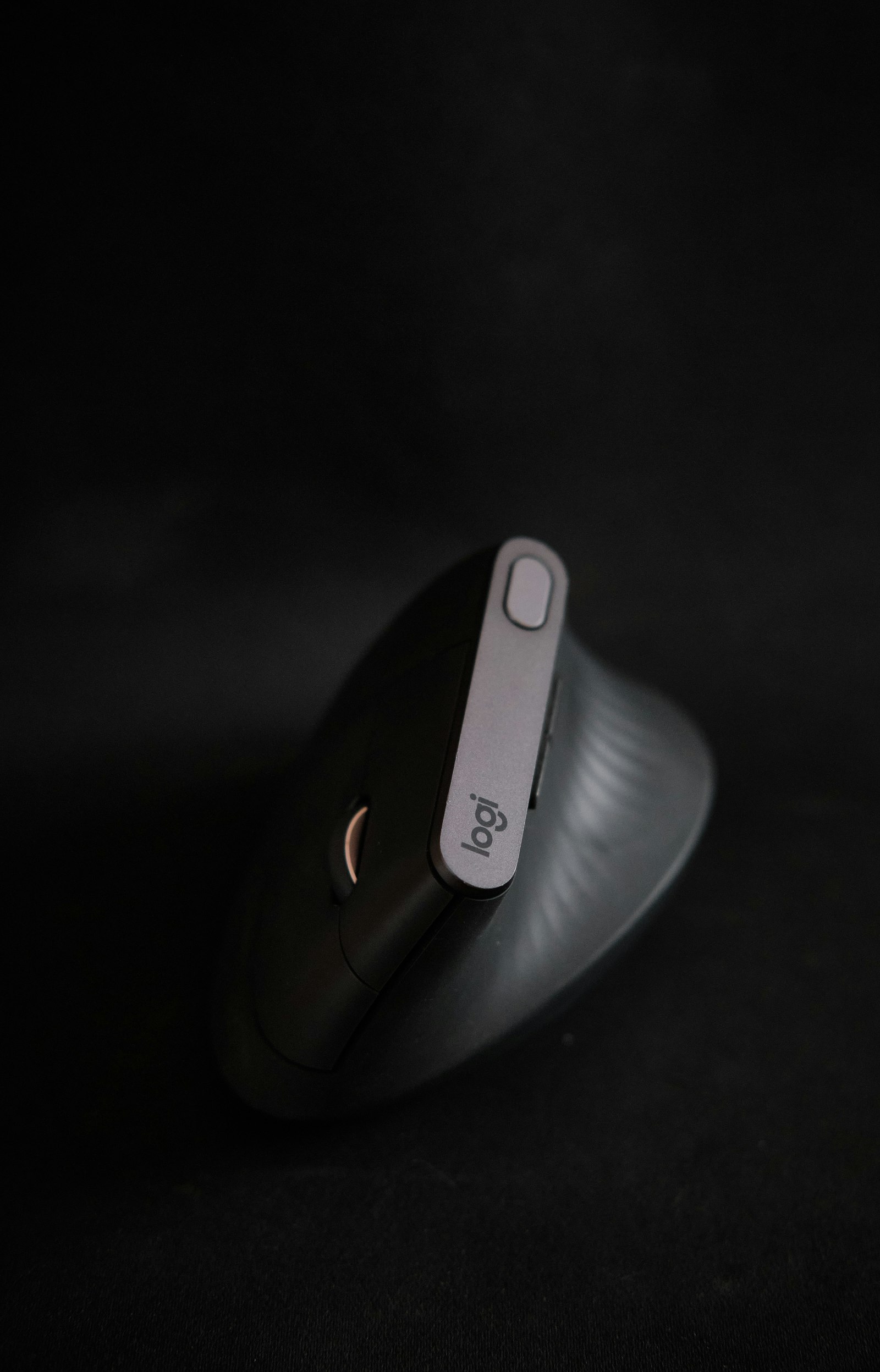
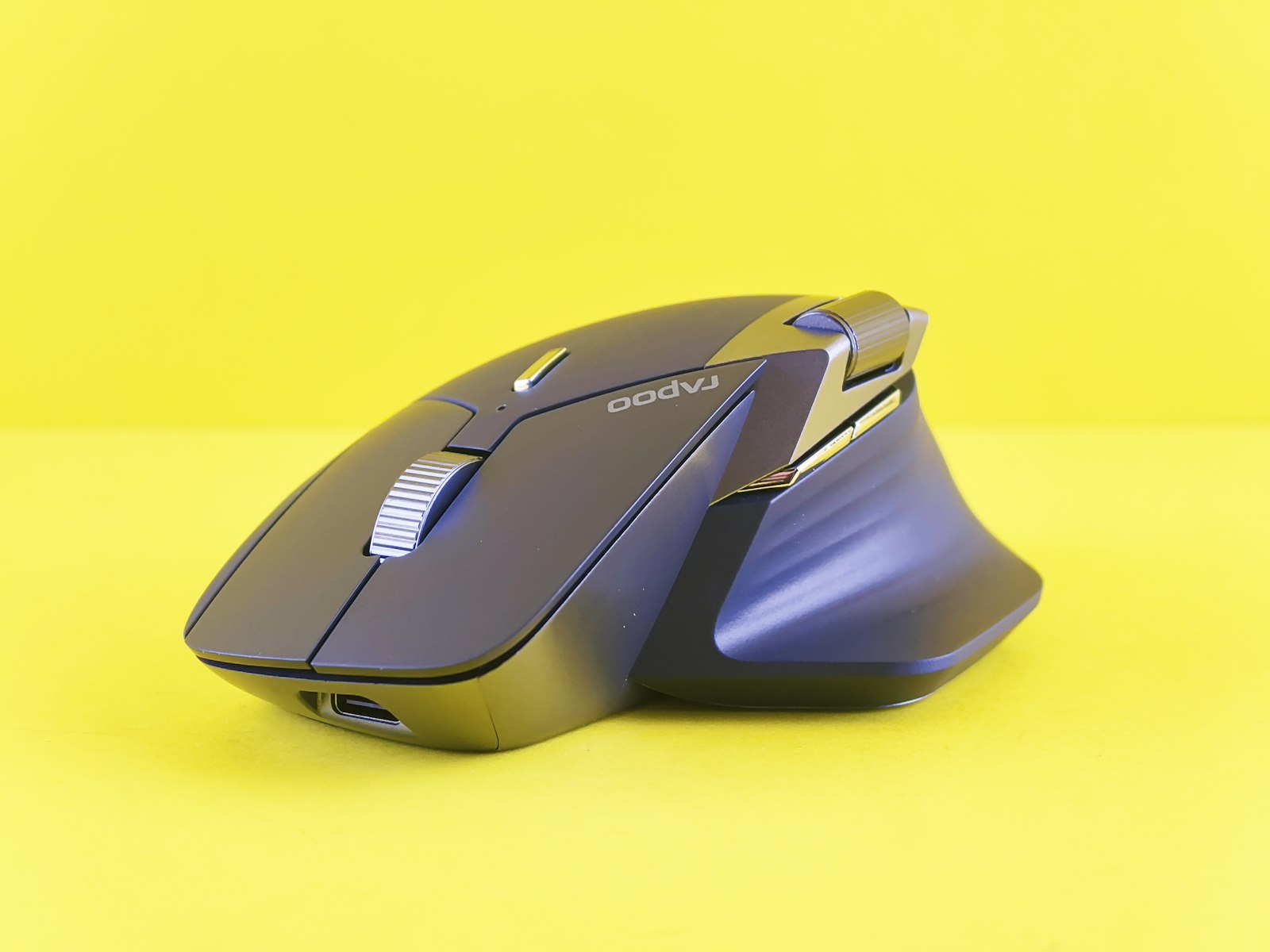
A different mouse can help after those basics are right. A vertical mouse may reduce forearm rotation. A trackball may reduce shoulder movement. A pen tablet may reduce repetitive gripping for creative work. But none of them fixes a high desk, far mouse, unsupported feet, or an input setup that forces your arm to hover.
When This Needs Care, Not More Gear
Do not keep experimenting with gadgets if symptoms are escalating. Get medical or hand-therapy guidance if you have numbness, tingling, weakness, swelling, sharp pain, symptoms that wake you at night, or pain that does not improve after you reduce the trigger. Wrist symptoms can involve tendons, nerves, joints, the neck, or non-work factors. Ergonomics can reduce common irritants, but it should not be used to explain away progressive symptoms.
If the pain is mild, local, and clearly tied to long mouse sessions, setup changes are a reasonable first step. If symptoms spread into the fingers, change grip strength, or affect daily tasks outside computer work, treat that as a stronger signal to get assessed.
Step 1: Remove the Reach
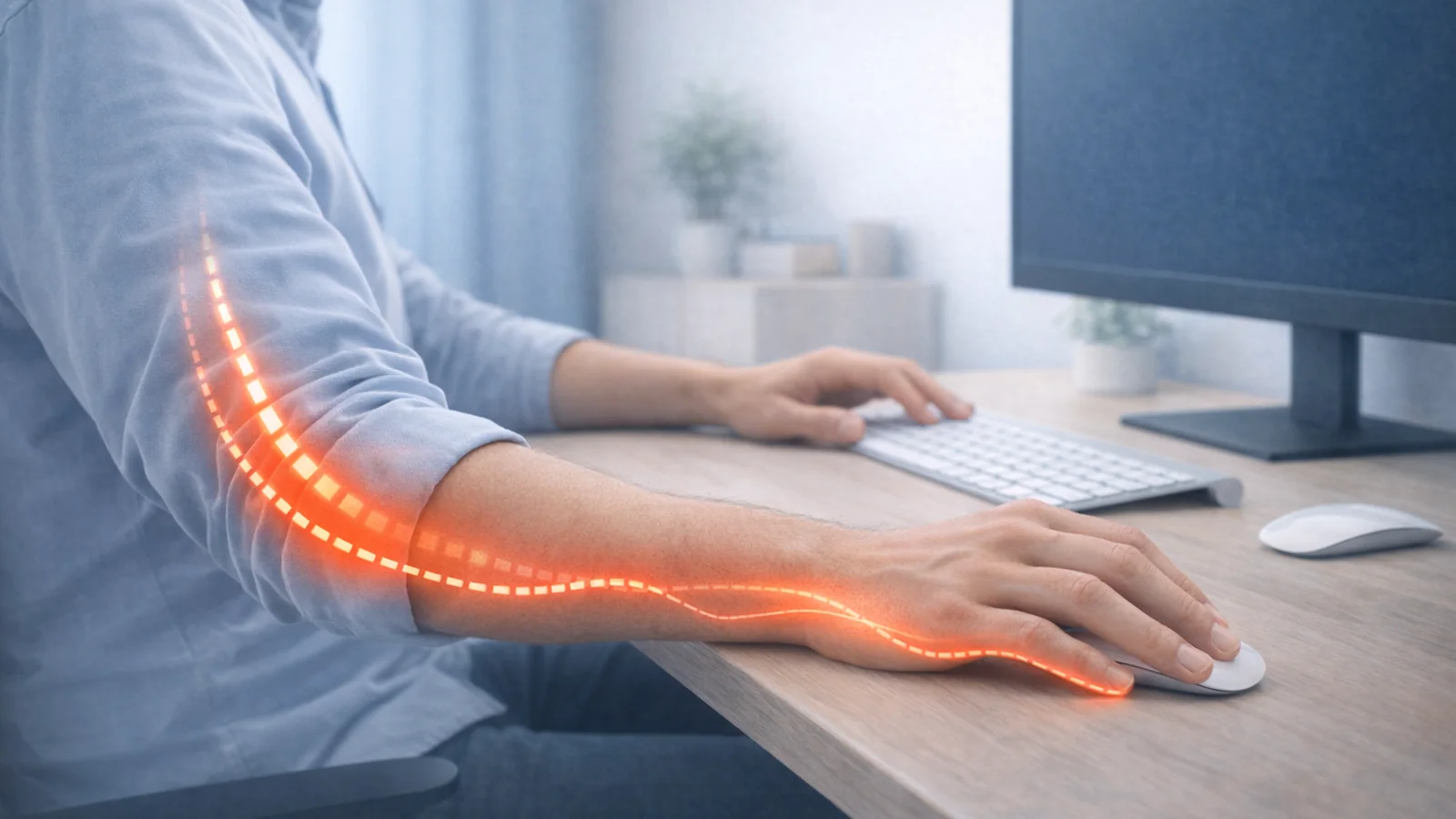
Most mouse pain starts before the hand touches the mouse. If the device is far forward or far to the side, the shoulder has to hold the arm out. The wrist then becomes the small steering joint at the end of a tired chain. That is why wrist pain often travels with shoulder, neck, or elbow tension.
Place the mouse beside the keyboard, close enough that your elbow stays near your body. Your upper arm should hang naturally instead of drifting forward. If you use a full-size keyboard, the number pad may be pushing the mouse too far right. A compact keyboard or separate number pad can bring the mouse closer to center without changing the mouse at all.
Run a quick test: work normally for five minutes, then freeze. If your elbow is away from your ribs, your shoulder is lifted, or the mouse has crept forward, the setup is creating reach. Move the device closer before testing any other solution.
Step 2: Set Height Before Angle
Keyboard and mouse height should let your shoulders relax, elbows stay close, and wrists remain mostly in line with the forearms. If the desk is too high, you will either shrug the shoulders or bend the wrists back. If you raise the chair to match a high desk but your feet no longer reach support, the low back and hips may become the next problem.
Fix height in this order: lower the desk if possible, add a keyboard tray if the desk cannot lower, support the feet if the chair must rise, then fine-tune the mouse. Do not judge a vertical mouse or trackball while the whole input surface is still too high.
Small changes matter. A one-inch lower input surface can be the difference between relaxed shoulders and a subtle shrug held for hours.
Step 3: Remove Contact Stress
Contact stress means pressure from a hard edge, wrist rest, armrest, or desk surface. It can irritate sensitive tissue even when your posture looks reasonable. A common pattern is planting the heel of the hand on the desk and steering from the wrist. Another is resting the forearm heavily on the front edge of the desk while reaching forward.
Use wrist rests as pause points, not rails. During active mousing, the hand should be able to move without grinding the wrist crease into a pad. If you use forearm support, it should spread pressure gently and let the shoulders relax. If it creates a narrow pressure line, it is not support; it is a new irritant.
Also check mouse-pad thickness. A tall gel pad may force the wrist into extension. A very thin pad on a sharp desk may not soften contact at all. The right option is the one that lets the wrist stay quiet without pressure.
Step 4: Change Device Based on the Load
Once reach, height, and pressure are under control, choose the device based on the load you are trying to reduce. Do not assume ergonomic means better for every symptom pattern.
| Pattern | What to test | What to watch |
|---|---|---|
| Wrist aches from forearm rotation | Vertical mouse or slightly angled mouse | Do not accept a larger reach or tighter grip. |
| Shoulder tires from moving across a wide screen | Trackball, higher pointer speed, centered work area | Thumb-heavy trackballs can irritate the thumb for some people. |
| Creative work involves long dragging or drawing | Pen tablet or tablet shortcuts | Keep the tablet close; do not trade wrist pain for shoulder reach. |
| Clicking volume is the main trigger | Keyboard shortcuts, programmable buttons, lighter click force | A new mouse will not solve unchanged workload volume. |
| Pain changes location with every device | Reduce work blocks and get assessed if symptoms persist | Moving pain can mean the problem is not device-specific. |
Test one device for a realistic work block, not just ten minutes. A mouse can feel good at first because it is different. The real question is whether symptoms are lower at the end of a normal day and the next morning.
Reduce Workload, Not Just Posture
Mouse pain is often a dose problem. If your workday includes constant selection, dragging, spreadsheet navigation, design edits, or gaming, the total number of repeated actions matters. HSE display-screen guidance favors short, frequent breaks or changes of activity over long, infrequent ones; that principle applies well to heavy mouse use.
Reduce dose with shortcuts and task rotation. Learn the five shortcuts you use most often. Increase pointer speed slightly if you are making huge wrist sweeps. Put keyboard-heavy tasks between mouse-heavy blocks. If it feels natural, use the non-dominant hand for simple scrolling or navigation, but do not force ambidextrous mousing through pain.
Use one-minute resets before pain peaks: open and close the hands, rotate the forearms, let the arms hang, stand up, and move the shoulders through an easy range. The goal is not a dramatic stretch. It is a small load change before the tissue gets irritated.
Seven-Day Reset Plan
Day 1: Move the mouse close to the keyboard and remove obvious reaching. Take a photo from above after ten minutes of real work.
Day 2: Fix height. Lower the input surface or support the feet if the chair must rise. Check whether the shoulders drop.
Day 3: Remove hard-edge pressure. Change wrist-rest use, desk-edge contact, or forearm support.
Day 4: Reduce clicking dose with shortcuts, pointer-speed changes, and task grouping.
Day 5: Test a different device only if the setup is now calmer. Compare end-of-day and next-morning symptoms.
Day 6: Add a microbreak every 30 to 45 minutes during mouse-heavy work.
Day 7: Review the pattern. If symptoms are clearly improving, keep the changes. If symptoms persist or include numbness, tingling, or weakness, get professional guidance instead of continuing to buy gear.
Common Mistakes
The first mistake is buying a bigger ergonomic mouse that forces a wider reach. The second is using a wrist rest as a brace while actively moving. The third is raising the chair for a high desk and forgetting foot support. The fourth is testing a new mouse while the keyboard is still pushing the mouse far to the side. The fifth is ignoring workload: a perfect setup still struggles with six uninterrupted hours of high-volume clicking.
Fix the geometry first, then the device, then the daily dose. That order prevents you from blaming the mouse for a workstation problem.
What to Track Before You Buy Gear
Before buying another mouse, track three workdays: what task triggered symptoms, where the pain was, whether numbness or tingling appeared, what changed it, and how symptoms felt the next morning. If a setup change lowers end-of-day pain but symptoms return during heavy design or spreadsheet work, workload is still part of the issue. If every device causes a different symptom pattern, the problem may need a broader assessment than mouse selection.
Related reading: if the pain is more specific to Apple hardware, see Magic Mouse Wrist Pain and Magic Trackpad vs Mouse for RSI on Mac. If symptoms include inner elbow pain or pinky tingling, read Desk Elbow Pain at a Computer and consider getting evaluated if nerve symptoms persist.
Frequently Asked Questions
Is a vertical mouse better for wrist pain?
Sometimes. It can reduce forearm rotation, but it can also create a larger reach or heavier grip if the shape does not fit your hand. Test it only after mouse height and distance are reasonable.
Should my wrist touch the desk while I use the mouse?
Light contact during pauses is usually fine. Heavy pressure on the wrist crease or desk edge during active movement is a common irritant.
Should I float my wrist all day?
Not rigidly. The better target is relaxed support with no hard pressure point. Your hand should be free to move, and your shoulder should not have to hold the arm up all day.
Do I need a keyboard tray?
You may need one if the desk surface is too high and cannot be lowered. A good tray lets the keyboard and mouse sit at relaxed elbow height with enough room for both.
Sources
- OSHA: Computer Workstations - Pointer/Mouse
- OSHA: Computer Workstations - Good Working Positions
- Mayo Clinic: Office Ergonomics
- HSE: Working Safely With Display Screen Equipment
Medical Disclaimer
This article is for educational purposes only and is not medical advice. It is not intended to diagnose, treat, cure, or prevent any condition, and it does not replace care from a physician, physical therapist, hand therapist, or other qualified clinician. If you have severe pain, numbness, weakness, swelling, worsening symptoms, or questions about your specific situation, seek professional medical evaluation.