By Posture Reminder AI
Published by Posture Reminder AI
Continuity Camera Not Working on Mac? Fix Freezing, Disconnects, and Missing Camera Options
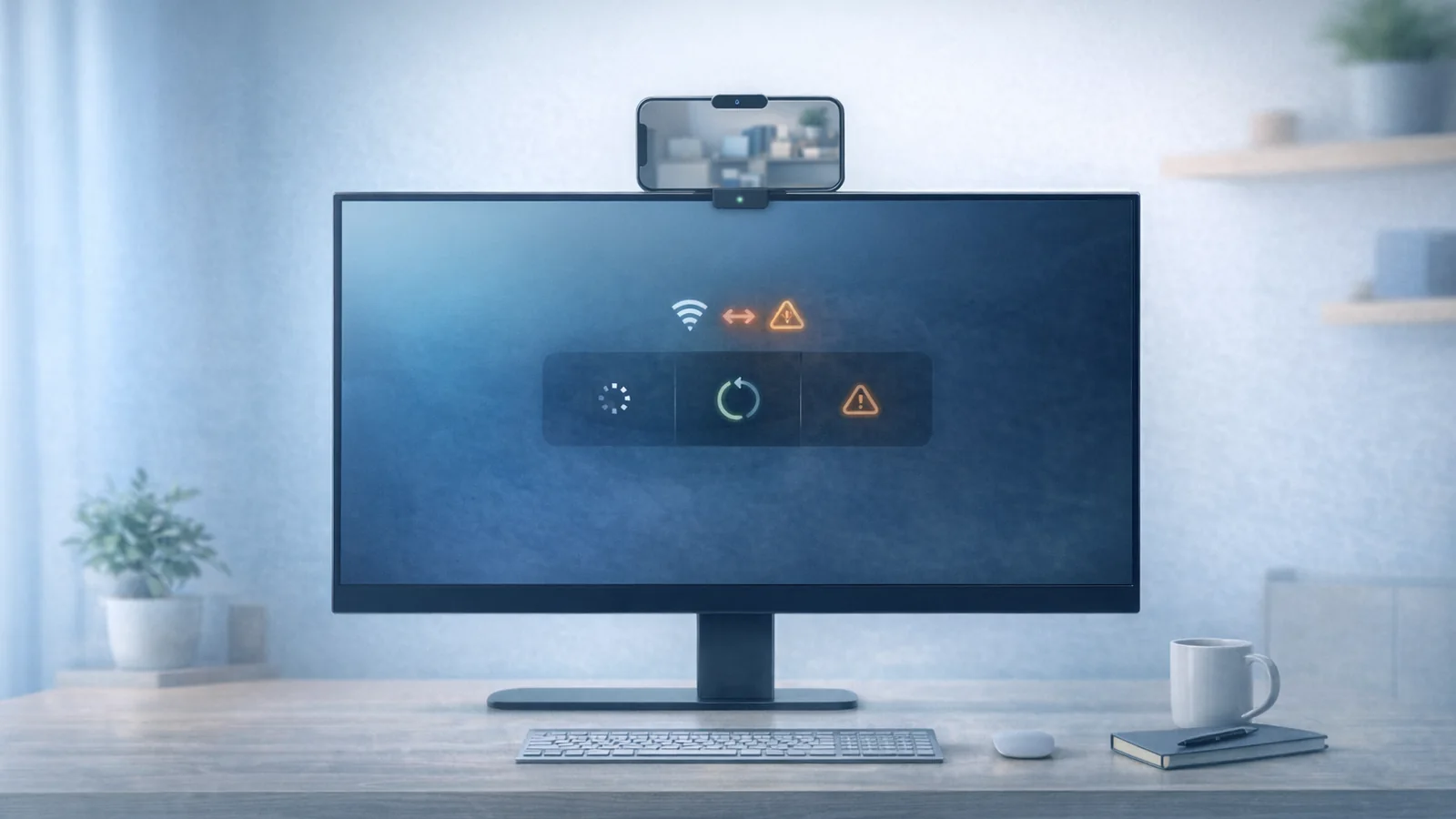
If Continuity Camera is not working on Mac, the fastest fix is not random reinstalling. First figure out which failure you have: the iPhone never appears as a camera, it appears but keeps freezing, it works in Apple apps but not Zoom or Meet, or it only behaves when you plug in a cable.
Quick summary
Summarize this blog with AI
If Continuity Camera is not working on Mac, the fastest fix is not random reinstalling. First figure out which failure you have: the iPhone never appears as a camera, it appears but keeps freezing, it works in Apple apps but not Zoom or Meet, or it only behaves when you plug in a cable.
Apple's current support guidance is more specific than many troubleshooting threads. Continuity Camera has a short list of requirements, and several of the most common failure modes come from ignoring one of them: wrong account state, no trust approval over cable, AirPlay or Sidecar conflict, app-level camera selection, or wireless instability during longer sessions.
This guide is built around that logic. Diagnose the failure first, then test the shortest path that proves whether the problem is system-level, app-level, or wireless-only.
Fastest Route To Clarity
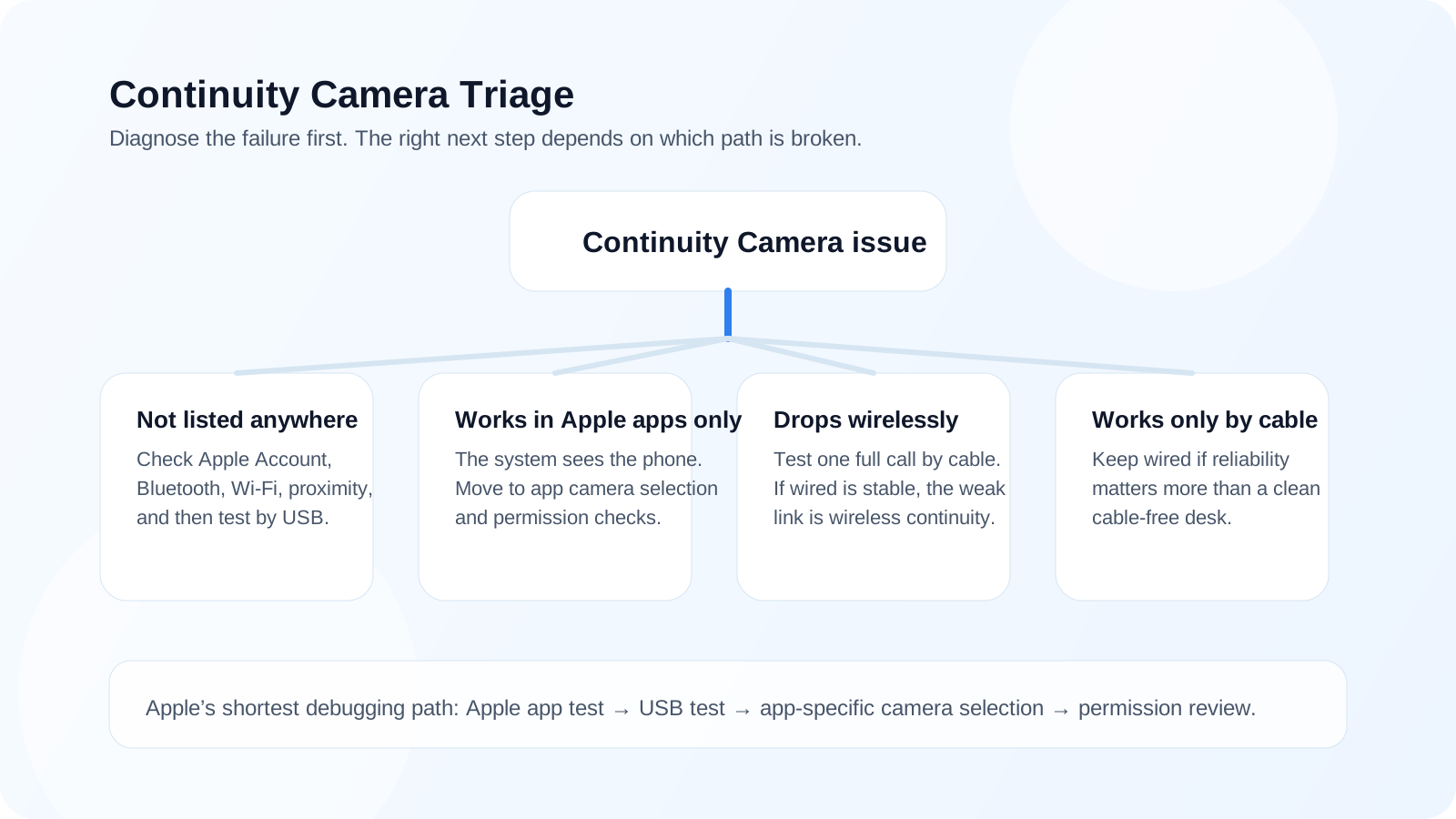
Do not start with the meeting app. Start with the smallest test Apple supports.
- Check whether the iPhone appears in Photo Booth or FaceTime first.
- If wired works and wireless does not, stop treating it like one giant mystery bug.
- If Apple apps see the camera but Zoom or Meet does not, move to app camera selection and permissions next.
Key Highlights
- If the iPhone camera works in Photo Booth or FaceTime but not in Zoom, Teams, or Meet, the Mac usually sees the device and the problem is more likely app selection or app state.
- Apple says Continuity Camera requires the same Apple Account with two-factor authentication, Wi-Fi and Bluetooth on, devices nearby, and no AirPlay or Sidecar for wireless use.
- Apple also explicitly recommends testing with a USB cable, and using USB is often the clearest way to separate wireless instability from everything else.
- If your Mac asks you to trust or allow the accessory over cable, that prompt matters. Skipping it can make the setup look randomly broken.
First Split: Which Failure Do You Actually Have
- Not listed anywhere: likely setup, permissions, account, or compatibility problem.
- Listed but unstable: likely wireless, heat, or connection-state problem.
- Works in Photo Booth but not in a meeting app: likely app camera selection, stale app state, or app-specific permission flow.
- Works only by cable: likely wireless continuity problem rather than camera quality or app quality.
Continuity Camera Triage Table
| What you see | Likely bucket | First test |
|---|---|---|
| The iPhone never appears as a camera | Requirements, account state, or trust/permission problem. | Check Apple Account, Bluetooth, Wi-Fi, proximity, and then test by cable. |
| It appears in Photo Booth but not in Zoom or Meet | App-level selection or permission issue. | Choose the iPhone inside that app and re-check camera permissions. |
| It works for a while, then freezes wirelessly | Wireless stability, heat, or connection-state problem. | Run one full test over USB and compare behavior. |
| It works only over cable | Wireless continuity path is the weak link. | Keep wired if reliability matters more than cable-free aesthetics. |
What Apple Currently Requires
Apple's current Continuity Camera support documentation says the iPhone and Mac need to be signed in to the same Apple Account using two-factor authentication, with Wi-Fi and Bluetooth on, close to each other, and not using AirPlay or Sidecar for wireless Continuity Camera. Apple also says the iPhone should be mounted, stable, and ideally in landscape orientation. For wired use, the iPhone must trust the Mac.
Start with Apple's own docs: Continuity Camera: Use iPhone as a webcam for Mac and the Mac Help page on using your iPhone as a webcam on Mac.
The Fastest Check Order
- Open Photo Booth or FaceTime and see whether the iPhone is available there.
- If not, confirm same Apple Account, Bluetooth, Wi-Fi, device proximity, and that AirPlay or Sidecar is not active.
- If you can, connect the iPhone by USB and approve both the iPhone trust prompt and any Mac accessory prompt.
- Restart the iPhone or Mac if the device has not been unlocked since reboot or has been stuck in a bad state.
- Only after that should you spend time on app-specific settings.
Where To Look Next If Apple Apps Work
| If Apple apps work but... | Check this next |
|---|---|
| Zoom does not see the camera | Zoom camera selection and whether it kept the previous device source. |
| Meet in Safari does not see the camera | Safari website camera permissions as well as Mac camera permissions. |
| The app used to work before an update | A full quit/reopen, camera re-selection, and a clean single-app retest. |
If Wired Still Does Not Work
On a Mac laptop with Apple silicon, a new or unknown accessory can trigger an approval prompt. Apple documents that behavior in its support article on allowing USB and other accessories to connect to your Mac. If you ignore the prompt, the accessory may charge but not behave the way you expect.
Also verify Mac camera permission state in Privacy and Security for the relevant app. This matters especially when the system path is fine but a third-party app still acts blind.
When To Stop Troubleshooting and Choose the Simpler Tool
Continuity Camera is useful, but if your workday depends on reliable video, there is nothing irrational about choosing the most stable path. That may mean a wired Continuity Camera setup, or it may mean a dedicated webcam. The best setup is the one that does not create a pre-call troubleshooting ritual.