By Posture Reminder AI
Published by Posture Reminder AI
Scroll Wheel Finger Pain: Settings and Alternatives That Reduce Repetition
If your finger aches while scrolling but feels better when you stop using the wheel, changing the angle of the whole mouse may leave the main task unchanged. A vertical mouse still asks a finger to reach, roll, and sometimes press a wheel hundreds of times. Start by separating those actions, then reduce the particular action that bothers you.
Quick summary
Summarize this blog with AI
If your finger aches while scrolling but feels better when you stop using the wheel, changing the angle of the whole mouse may leave the main task unchanged. A vertical mouse still asks a finger to reach, roll, and sometimes press a wheel hundreds of times. Start by separating those actions, then reduce the particular action that bothers you.
This guide is a practical way to troubleshoot scrolling during browsing, document review, and office work. It does not identify the medical cause of finger pain. A setting change can reduce repeated input; it cannot establish that a tendon, joint, nerve, or skin problem is harmless.
The distinction matters before buying another mouse. In an October 14, 2026 discussion, a reader described finger pain with clicking and the wheel, and questioned whether a vertical mouse would address it. That is a useful purchasing question: which action needs to become easier, and does the proposed device actually change it?
Separate scrolling from clicking and holding
Think about the work you were doing when discomfort appeared. Do not repeatedly reproduce a painful movement to prove a theory. Instead, use what you have already noticed to choose one lower-demand experiment.
| What seems to trigger discomfort | First change to try | What to watch |
|---|---|---|
| Repeated rolling through long pages | Use search or page navigation for the longest trips | Whether you actually make fewer wheel strokes |
| Pressing the wheel for a middle click | Use the application's menu or another supported command | Whether pressing, rather than rolling, was the difficult part |
| Holding a button while panning or dragging | Check the application's navigation controls | Whether the replacement removes the hold |
| Fingertip irritation from contact with the wheel | Stop rubbing that area and use another navigation method | Skin changes or symptoms that persist away from the device |
A smooth-spinning wheel may change rolling resistance without changing the force of its middle-click button. A thumb wheel may move the repeated task to a thumb. Neither is automatically the solution to every row in this table.
Replace long scrolls with destinations
Before increasing scrolling speed, ask why you need to travel through so much material. If you want a named section, use the document outline, a bookmark, or the application's Find command. If you repeatedly revisit the same paragraph, keep a second view open where supported instead of making the same trip again.
For a browser article, use its contents link to jump to the section you need. In a PDF, enter a known page number rather than scrolling from page 4 to page 40, or search for a distinctive phrase when you do not know the page. In a spreadsheet, use the application's cell or range navigation to reach a known address. Save the wheel for nearby adjustments where it gives useful control.
Keep ordinary reading comfortable. Do not shrink text so far that reducing scroll distance creates eye strain or a forward lean. The aim is fewer unnecessary journeys, not fitting an entire document onto one screen.
Adjust scroll speed without overshooting
Pointer speed and scrolling speed are separate controls. Increasing how fast the pointer crosses the screen may do nothing to the number of wheel strokes needed to read a long page.
Windows 11 wheel settings
Open Settings > Bluetooth & devices > Mouse. Under Scrolling, Windows offers multiple lines or one screen at a time, plus a control for the number of lines per wheel step. Microsoft documents these wheel settings separately from pointer speed.
Record the original value. Increase it modestly, then try a normal document. If you keep overshooting and reversing direction, lower it again. One-screen scrolling can suit broad reading but be awkward for careful line-by-line review.
Mac scrolling settings
Apple's current guide places scrolling speed in System Settings > Accessibility > Pointer Control, under Mouse Options or Trackpad Options. Adjust the Scroll speed slider if your device exposes it. See Apple's scrolling-speed instructions and select your macOS version if the labels differ.
A third-party driver or application can affect the result. Test in the program where you actually work. If the option is unavailable, use your device's documented controls or an approved workplace support route; do not assume a system slider will control every wheel.
Compare alternatives by the action they change
Use a replacement you already have before buying anything. A keyboard page command, a trackpad gesture, and a scroll ring are different ways to navigate, but each still involves movement. Judge them during the task you need to complete.
- Page commands: Useful for broad reading if they are easy to reach. Check the application's help because key behavior varies with focus and document type.
- A trackpad: Lets you try a gesture instead of a wheel. Keep it close, and avoid replacing wheel repetitions with tense, continuous finger movements.
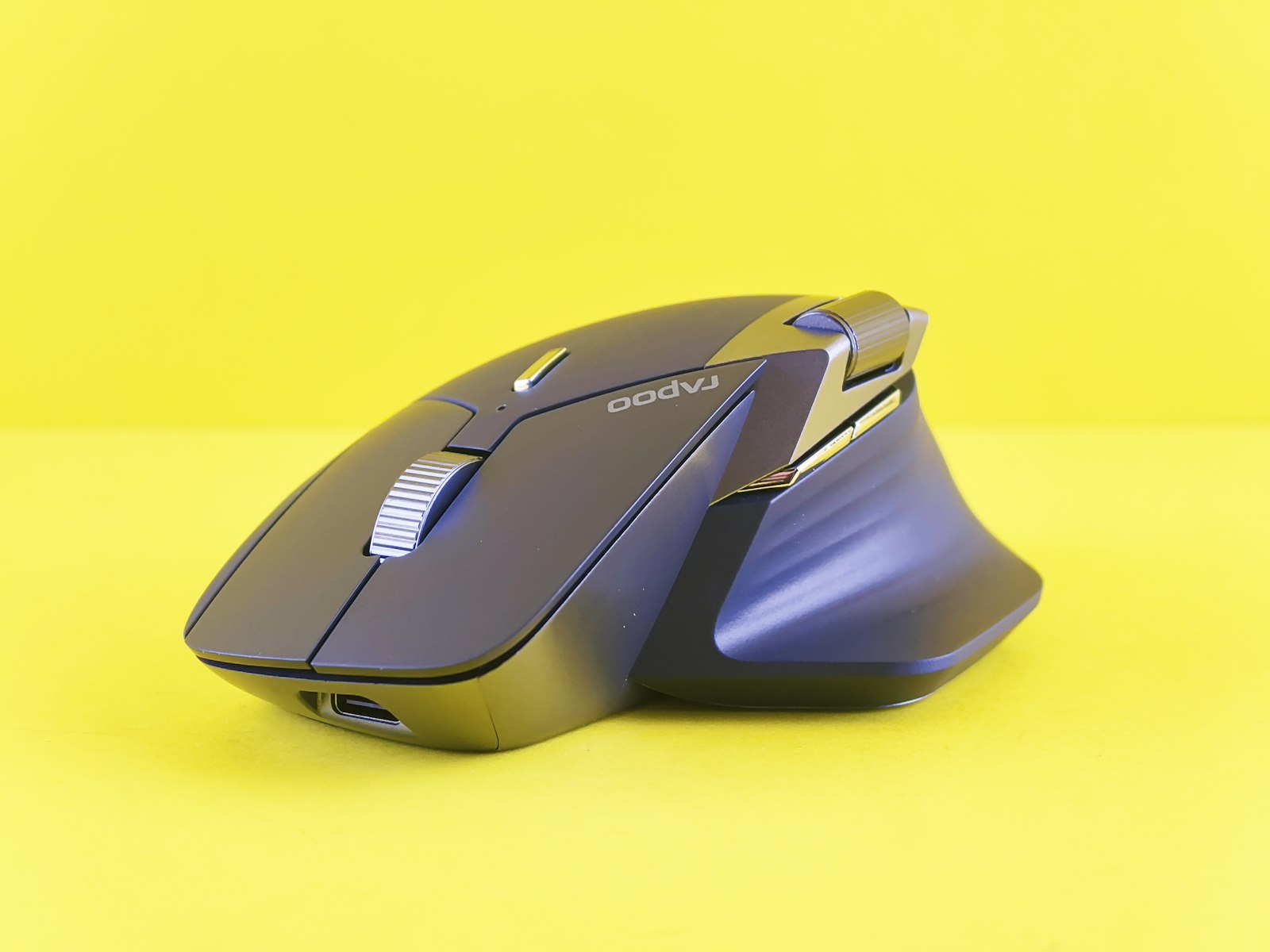
- A different wheel mechanism: Evaluate reach, surface feel, resistance, and middle-click force separately. A comfortable mouse shell does not guarantee a comfortable wheel.
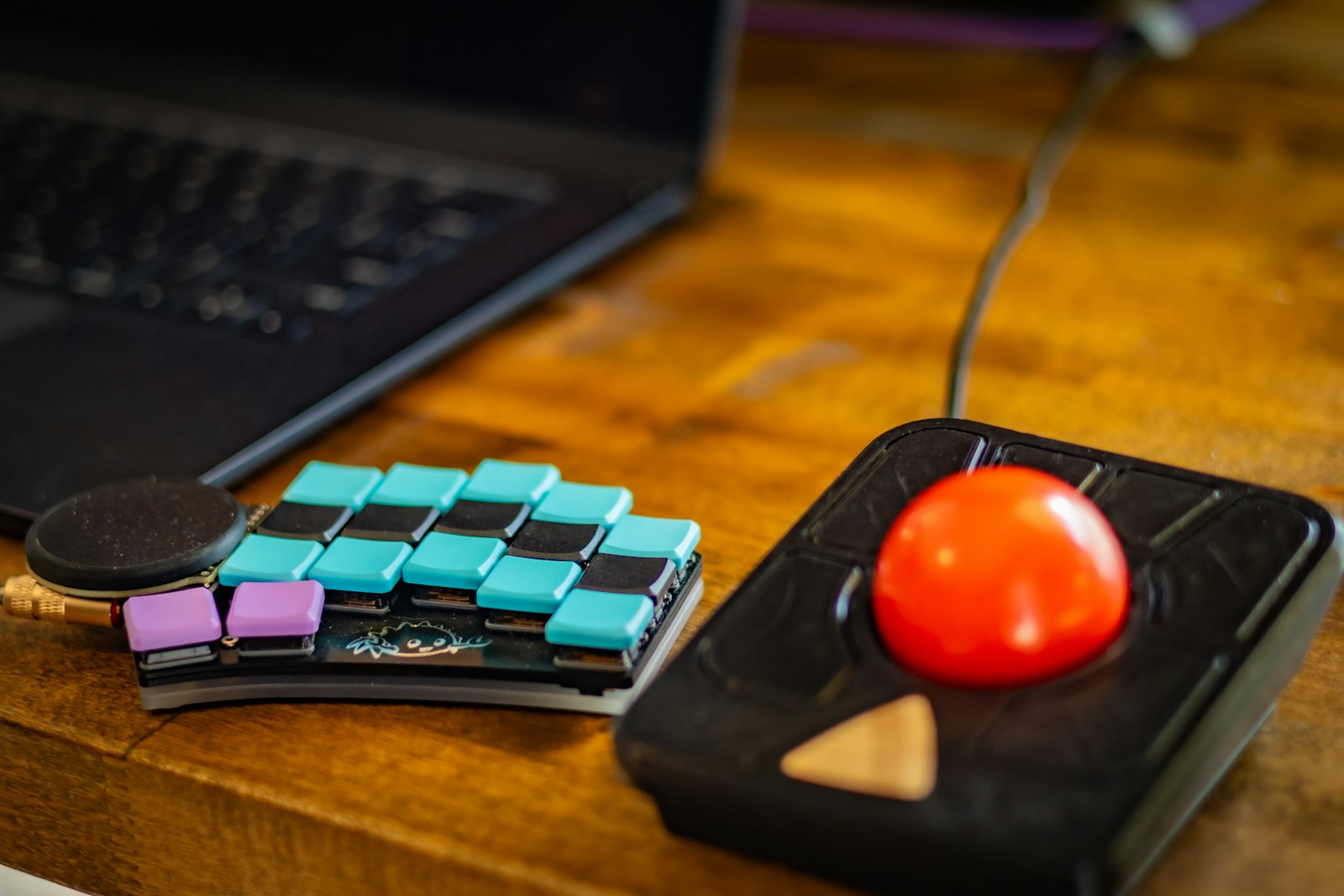
- A scroll ring or thumb control: May suit a particular task, but monitor the new finger or thumb workload. Our trackball troubleshooting guide explains why switching devices can introduce a different problem.
Do not add every alternative at once. You will have no useful comparison if a new mouse, new scroll speed, and unfamiliar navigation habits all arrive on the same morning.
A September 27, 2026 discussion about navigating image stacks shows why the task matters. Commenters described finger discomfort with sustained wheel use, but also overshooting with free scrolling or extra arm movement when dragging. These are individual experiences in specialist software, not proof that dragging is safer. Compare both the repeated finger action and the effort needed to stop at the right place.
Keep the hand and workload comfortable
OSHA's pointer guidance recommends a neutral wrist and a device positioned within easy reach. Check that you can reach the wheel without stretching the finger forward or squeezing the mouse to keep it still. If that requires a strained grip, the shape may not fit this task.
For the surrounding setup, follow our mouse wrist pain checklist. Put the hand down when you pause to think instead of leaving it poised over the wheel. Our microbreak guide covers pauses between tasks.
On a managed work computer, ask IT or your workstation assessor about supported settings and devices. Explain the task precisely: repeated wheel scrolling, sustained middle-button holding, or a difficult wheel reach. Do not bypass software restrictions with portable remappers.
Run a small comparison
Choose a task you already need to do, such as reading the next two screens of a report. Record the original setting before changing it. During ordinary use, notice how many wheel strokes it takes, how often you reverse direction after overshooting, and whether you must hold a button. You do not need to repeat a painful baseline or continue until symptoms appear.
A useful note might read: PDF review; increased lines per step; fewer wheel strokes, but repeated backward corrections; returned to original setting and used bookmarks for long jumps. Fewer strokes alone would not make that setting successful. Check both broad reading and a precise task, such as stopping at the start of a paragraph, before keeping it.
Also note comfort afterward and later in the day. Keep a change only if control and comfort are acceptable without a tighter grip or discomfort elsewhere. This is a usability comparison, not a medical test. For broader reductions in repetitive input, see typing less for wrist pain.
When to get help
Recurring symptoms deserve attention even if scrolling is an obvious trigger. The NHS advises seeking care when symptoms do not go away or worsen. Persistent numbness, weakness, swelling, or pain affecting ordinary activities should not be managed indefinitely by switching fingers. Stop the provoking task and seek appropriate assessment, especially after an injury or with severe symptoms.